For Sellers
Instructions for sellers
Everything you need to open a shop, add products, and start selling — step by step, with screenshots from the seller dashboard.
What's in the guide
Each section follows the seller dashboard as you see it. The images are from the actual dashboard — click on an image to open it in full size.
From registration to first sale
- RegistrationFill out the application and accept the seller terms.
- Shop detailsLogo, company info, WhatsApp, delivery.
- First productFive quick steps — or import your entire catalog.
- OrderAccept it within 48 hours and ship it.
- DeliveryCustomer confirms receipt — the sale is complete.
1How to become a seller
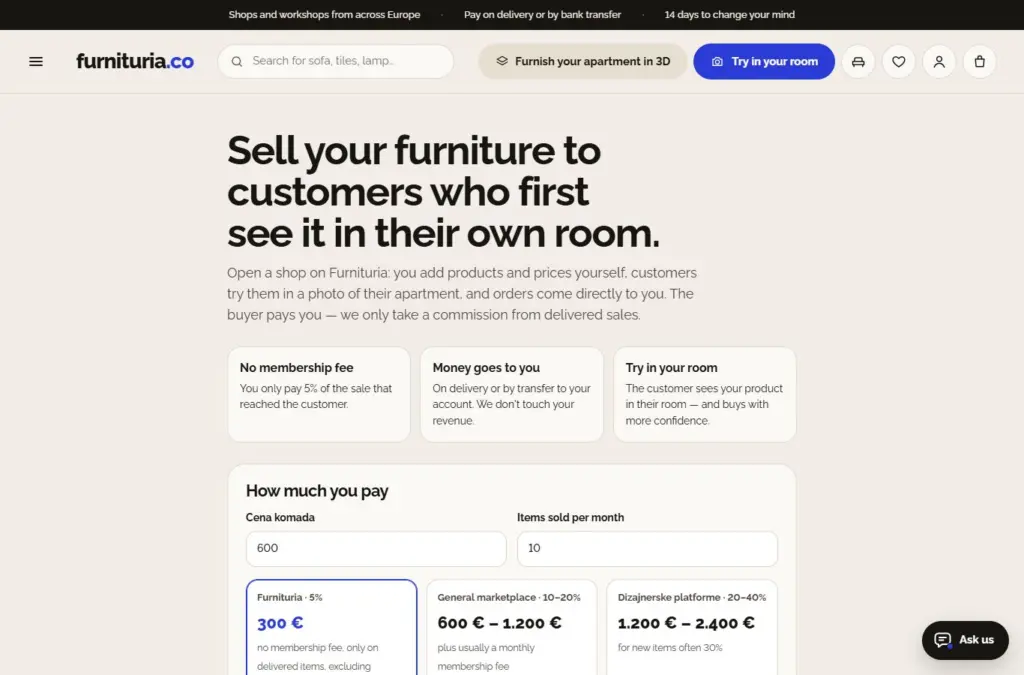
Open the Become a seller page and fill out the application: shop name, full company name, tax ID, registration number, address, contact person, phone, WhatsApp, and email. Finally, choose a password and accept the Seller Terms.
- Registration without an invitation awaits our approval. In the meantime, you can already add products and shop details — they become visible to customers as soon as we approve the account.
- If you received an invitation by email, registering via the link in the invitation opens the shop immediately, without waiting.
- When the Seller Terms change, the dashboard will ask you to accept them again upon your next login.
The seller dashboard is always at /seller/.
2Seller Dashboard — Overview
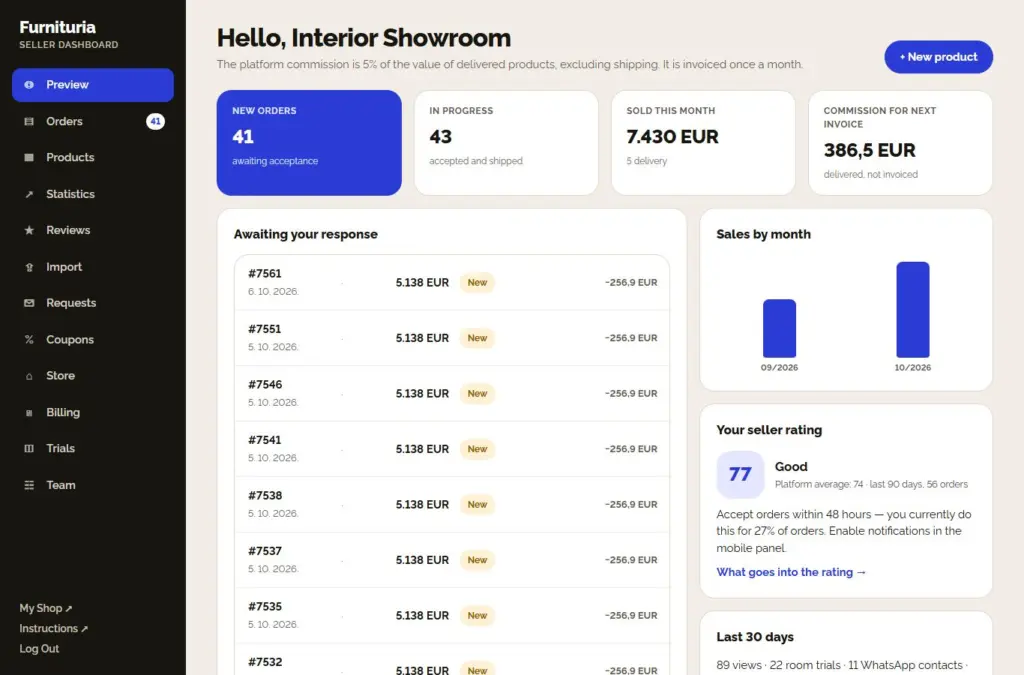
The first page of the dashboard shows what is happening and what requires your attention:
- First steps — while the shop is not ready, there is a list of 7 steps at the top (logo and description, company details, payment method, delivery and returns, WhatsApp, first product, “Verified Seller” badge). Each step leads directly to the settings page; completed steps get a ✓, and the list disappears when everything is done.
- New orders waiting for your acceptance, orders in progress, and this month's revenue.
- Commission for the next invoice — amount for delivered goods that have not yet been invoiced.
- Awaiting your response — list of new orders; click to open an order.
- Your seller rating and a quick tip on what to improve (more in the Statistics section).
On the left is a menu in six sections: Overview; Sales (Orders, Quote requests); Catalog (Products, Import, Coupons); Customers (Reviews and questions, Room trials); Results (Statistics, Settlement); Settings (Shop, Team). The number next to the item tells you what awaits you: new orders and customer inquiries, quote requests without your offer, unanswered questions. On mobile, Overview, Orders, Products, and Shop are at the bottom, and everything else is under Menu. The + New product button is always at the top right.
If a red bar saying "Enter mandatory company details" appears at the top, products cannot be added to the cart until you complete them — click Complete details →.
3Shop details
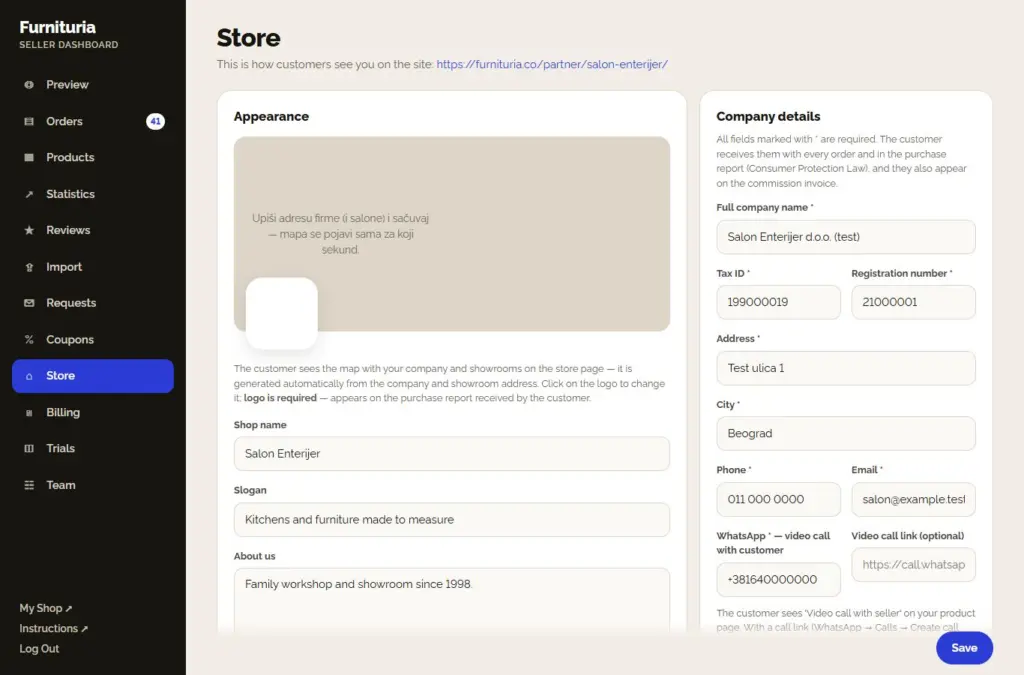
In the Shop menu, you edit everything the customer sees about you, by tabs: Appearance, Company details, Delivery and payment, Showrooms, Services, and Couriers. “Save” on any tab saves all shop data; services and couriers have their own button. A tab with a red dot has a missing required field. Fields with * are required.
- Appearance: logo (mandatory — also appears on the purchase report the customer receives), shop name, slogan, and "About Us" text. The map with your company and showrooms is generated automatically from your addresses.
- Delivery and Returns: delivery price, the amount over which delivery is free, delivery time in working days, and your return policy.
- Platform partner delivery (if a partner exists for your country): enable "Offer platform partner delivery with in-home setup" — the buyer chooses between your delivery and the partner's in the cart (two people, delivery into the apartment, agreed price). When you accept the order, the partner receives an order via email and picks up the goods from you.
- Delivery to other countries (furnituria.co): select the countries you ship to, the price, and the delivery time, then enable "I ship to other countries" on the product. Buyers from those countries only see those products — for smaller pieces, unique items, and vintage, not for bulky furniture.
- Payment: cash on delivery and/or bank transfer to your current account — money from the customer goes directly to you.
- Showrooms: city, address, and opening hours. The customer gets a "Schedule a visit" button on the product and shop pages, and the request arrives on your WhatsApp.
- Services with product: assembly, carrying into the apartment, removal of old furniture, or your own service — price per item, note for the buyer, and categories it applies to (nothing selected = all products). The buyer checks them on the product page before "Add to cart"; the service is included in the item price and appears in the order name.
- Company Details: full name, tax ID (PIB), registration number, address, city, phone, email, and bank account. The customer receives these with their order (Consumer Protection Act), and they are also included on the commission invoice.
- WhatsApp is mandatory: the customer can call you for a video call from the product page to see the product live. If you add a video call link (WhatsApp → Calls → Create call link → Video), the call opens immediately.
Enable Weekly email report — numbers, ratings, and tips arrive on Mondays.
✓This is how customers see you
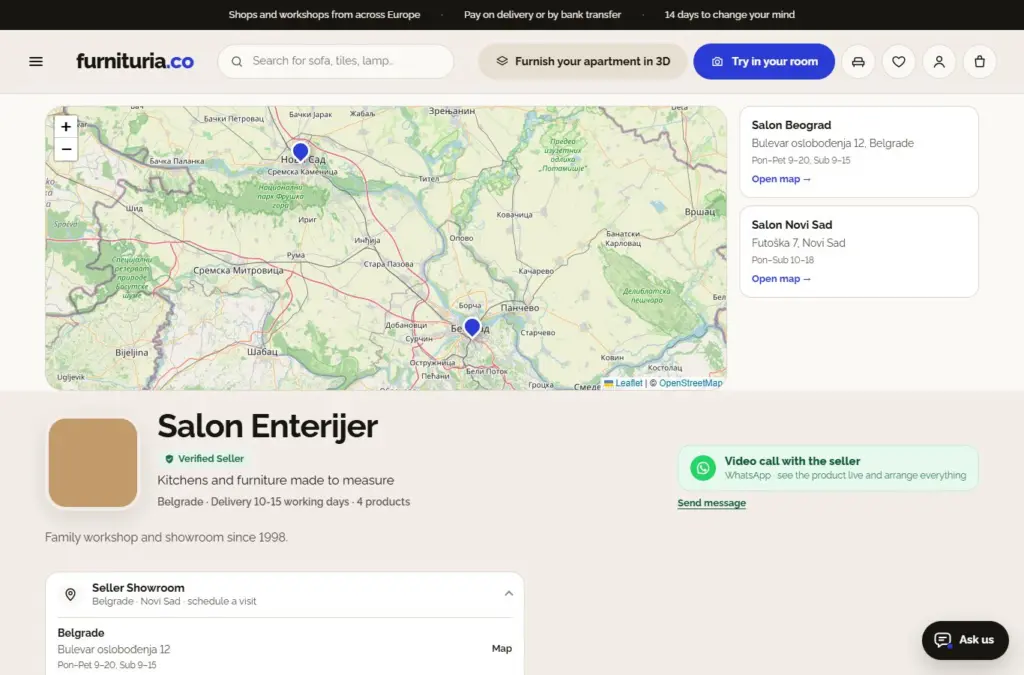
Your shop has its own page on the site: a map with showrooms, logo, rating, delivery time, video call button, and all your products. The link to it is in the panel on the bottom left — My Shop ↗.
Verified Seller: once we verify your company (registry, responsible person, showroom or workshop, bank account, and contact), a green "Verified Seller" badge appears next to your name on products and your shop page. Customers trust it more — contact us if you want to be verified.
On each product page, the customer sees a "Sold and shipped by" block with your name, delivery time, and price, and a Seller tab with company details and return policy.
New product, step by step
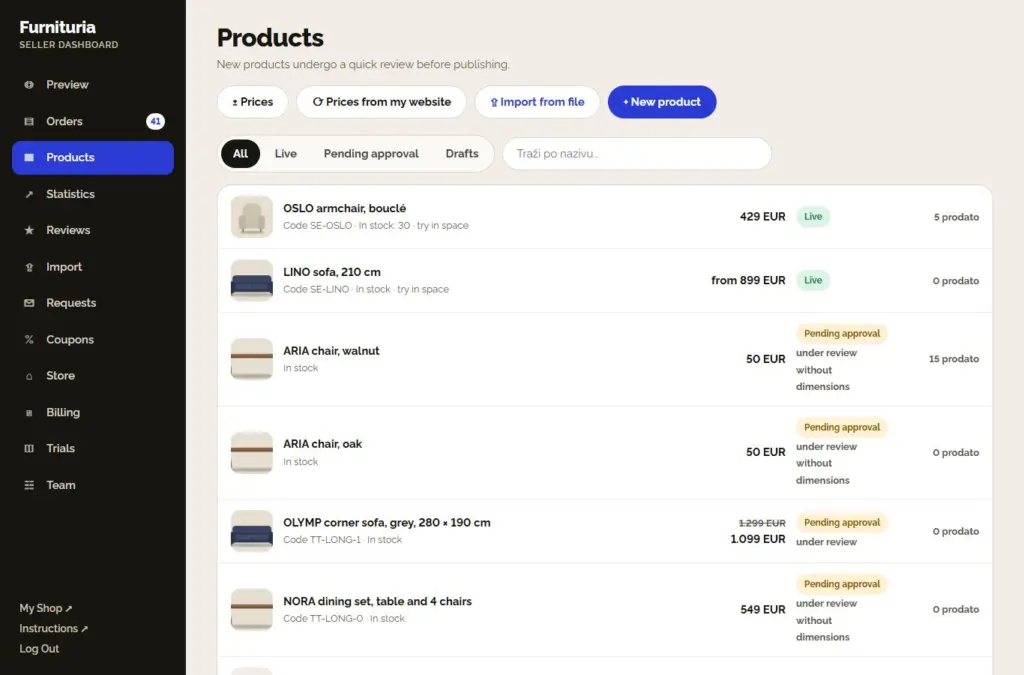
In the Products menu, you can see all your products with their status (For sale, Pending approval, Draft), price, and stock. Click + New product — entry takes five steps; "Next →" will not let you proceed until mandatory fields are filled.
4.1Basic
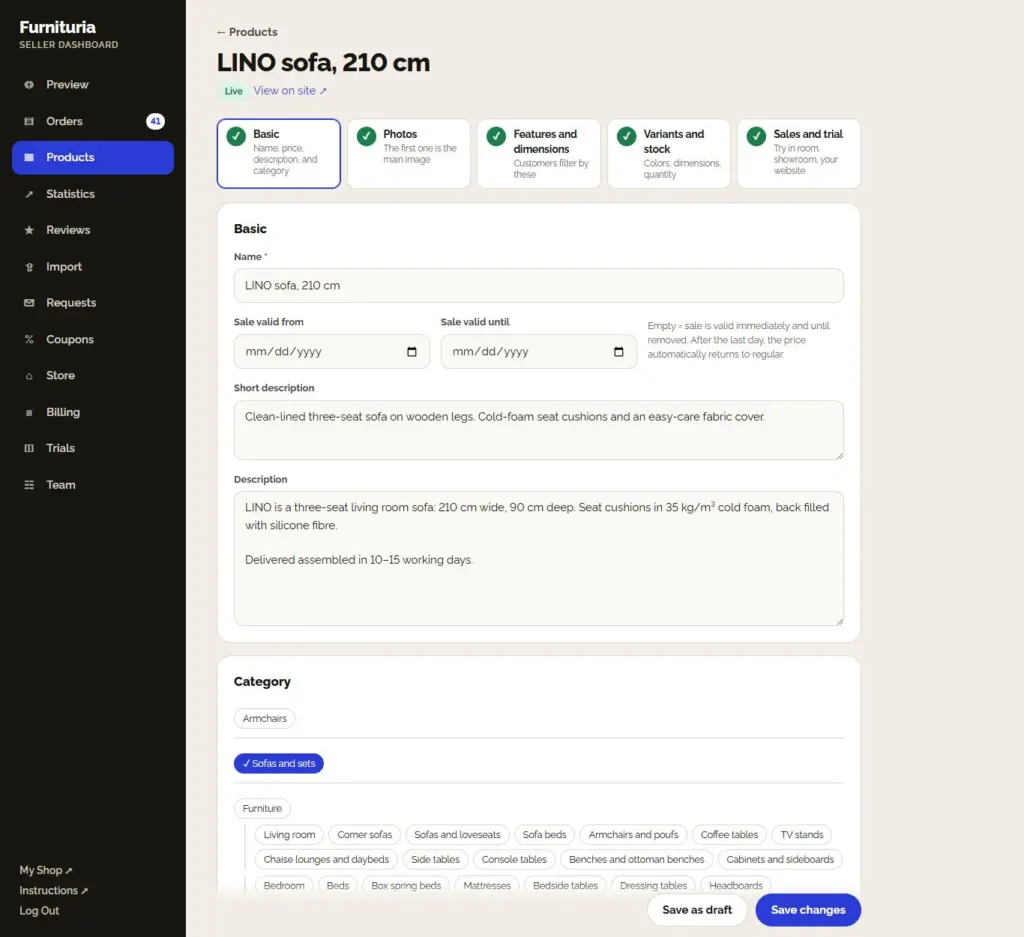
- Name: type + model + distinguishing features, e.g., "LINO 3-seater, 210 cm". No all-caps or exclamation marks.
- Price and, optionally, sale price with "Sale valid from/to" dates. Empty dates = sale is valid immediately until you remove it; after the last day, the price automatically reverts to the regular price.
- SKU — your product code. Imports and price synchronization use this to identify the product.
- Short description (two–three sentences) and Description (material, filling, delivery method, assembly, maintenance).
- Category — choose the most specific one that fits (e.g., Living Room → Sofas and Loveseats).
If a product has variants (e.g., the same sofa in multiple colors), turn on “Product has variants” above the price — prices are entered in the next step.
4.2Variants and stock
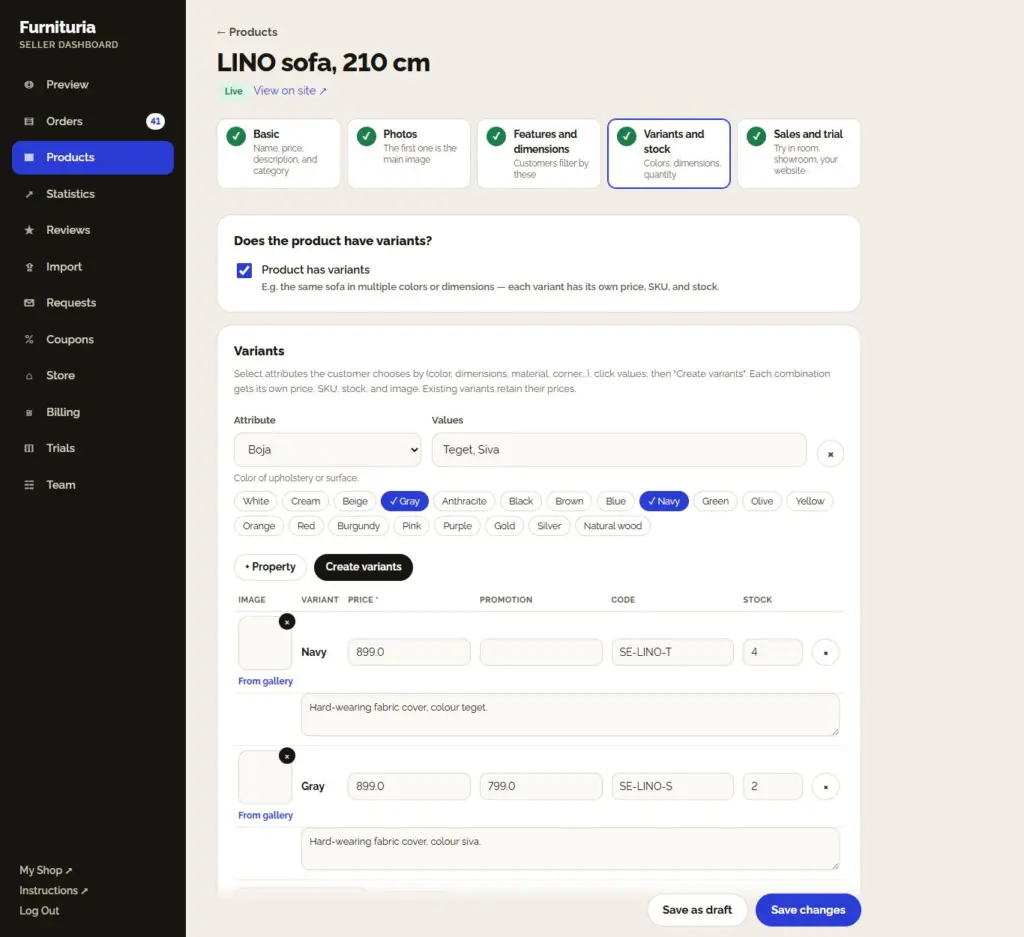
Turn on Product has variants (in step 1, above the price) when the same product comes in multiple colors, dimensions, or materials — do not create a separate product for each color. You create variants immediately in the second step:
- Choose the property the customer uses to select (e.g., Color) and click the values (Navy, Gray).
- Click Create variants — each combination gets its own row.
- For each variant, enter the price, optionally a sale price, code, and stock, select an image (the “From gallery” button, once you add photos in the next step), and a short description.
"Apply to all" enters the same price or stock for all variants. Existing variants retain their prices when adding new ones. A product without variants gets only stock here.
4.3Photos
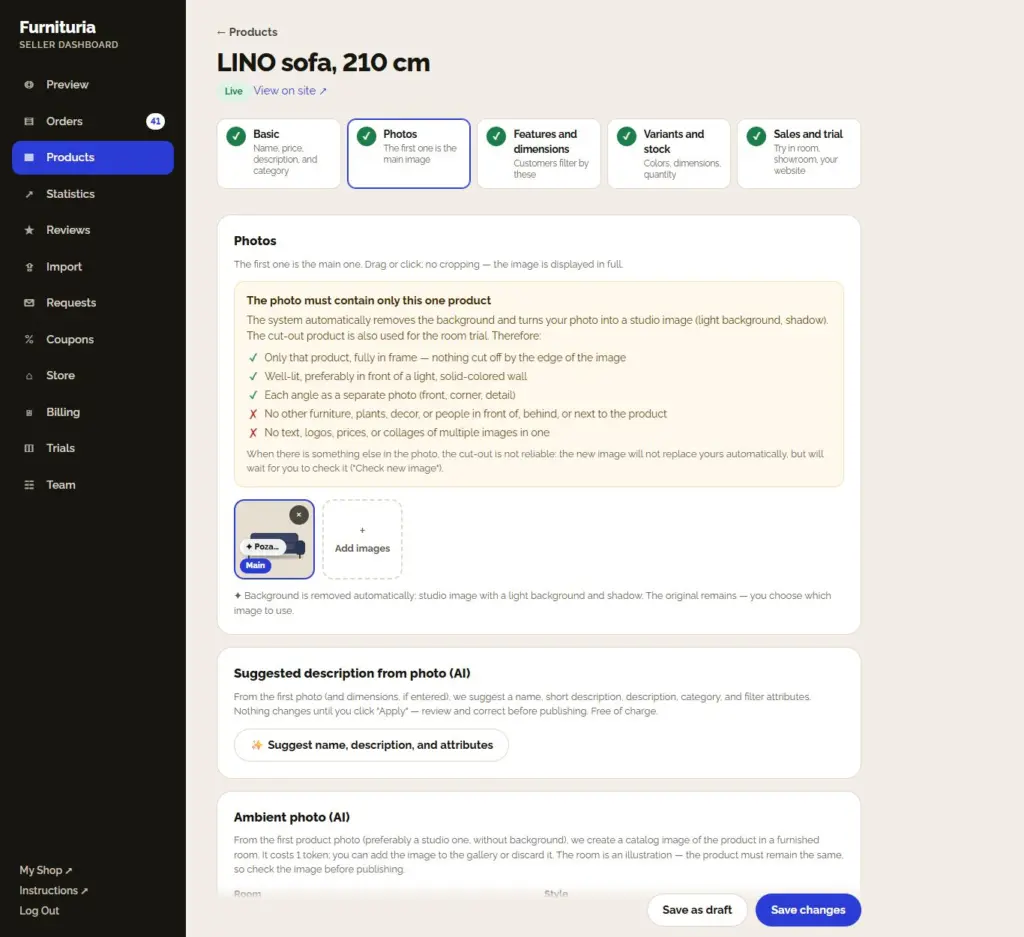
Drag photos or click Add images. The first one is the main one — this is what the customer sees in the catalog. Change the order by dragging; the image is displayed in full, without cropping.
- Background is removed automatically and for free: every new photo goes into the background removal queue. When the result is good, the product gets a clean image; otherwise, the panel asks you to check it. The original always remains — "Restore original" brings it back.
- The photo must contain only that one product, entirely in the frame (nothing cut off by the edge of the image) — no other furniture, plants, decorations, or people in front of, behind, or next to it, and no text, logos, prices, or collages. Add every angle (front, corner, detail) as a separate photo.
- Why: the system crops the product to create a studio image and an image for trying it in the customer's room. With other objects in the picture, cropping is not reliable — such a new image does not replace yours automatically, but waits for you to review it ("Check new image").
- At least one photo is mandatory.
- Suggested description from photo (AI): click "Suggest name, description, and features" — from the first photo (and dimensions, if entered) you get a suggested name, short description, bulleted description, category, and features for filters. Review it and click "Apply"; nothing changes automatically. Free, up to 60 suggestions per day.
- Ambient photo (AI): below the photos, select a room and style and click "Create ambient photo". In about half a minute, you get a catalog image of the product in a furnished room, which you can add to the gallery or discard. Costs 1 token (the same as a room trial). The room is an illustration, and the product must remain the same — check the image before publishing.
Photos and names are automatically compared with other sellers. A product with someone else's photo remains "Under review" until you correct it or the platform approves it.
4.4Features and dimensions
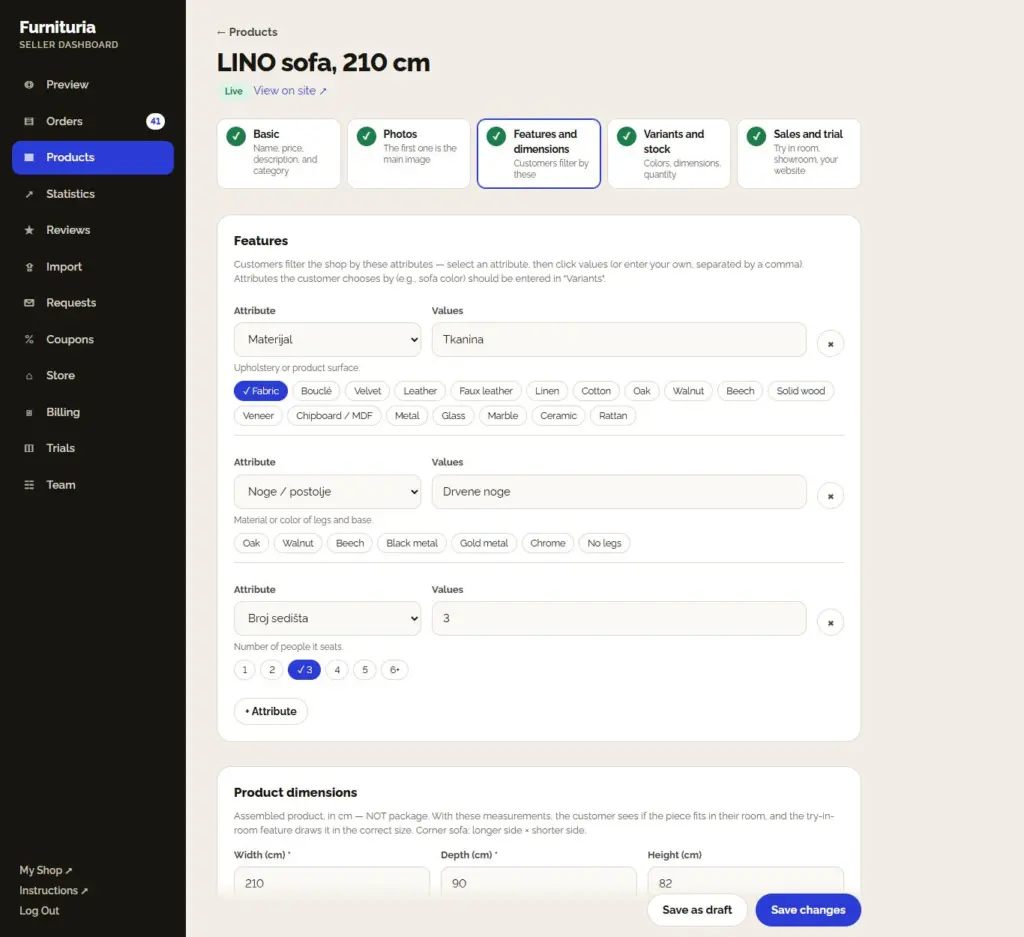
Features are what customers use to filter the catalog: Color, Material, Legs / base, Number of seats, Function, Shape… Choose a feature, then click values (or type your own, separated by commas). The more features, the more often your product appears in filters.
Product dimensions are mandatory: width and depth of the assembled product in cm — not the package. For a sectional sofa: longer side × shorter side.
- Based on these dimensions, the customer sees if the piece fits in their room, and room trial renders it in the correct size.
- Incorrect dimensions (e.g., box dimensions) give a wrong impression in the trial — the customer then sees a shortened or distorted sofa.
- Package dimensions and weight are entered separately below. They are used for delivery and for the "Does it fit in the room?" check on the product page: the customer enters the width of doors and hallways, elevator or stairs, and we check if the package fits. For multiple packages, enter the dimensions of the largest one.
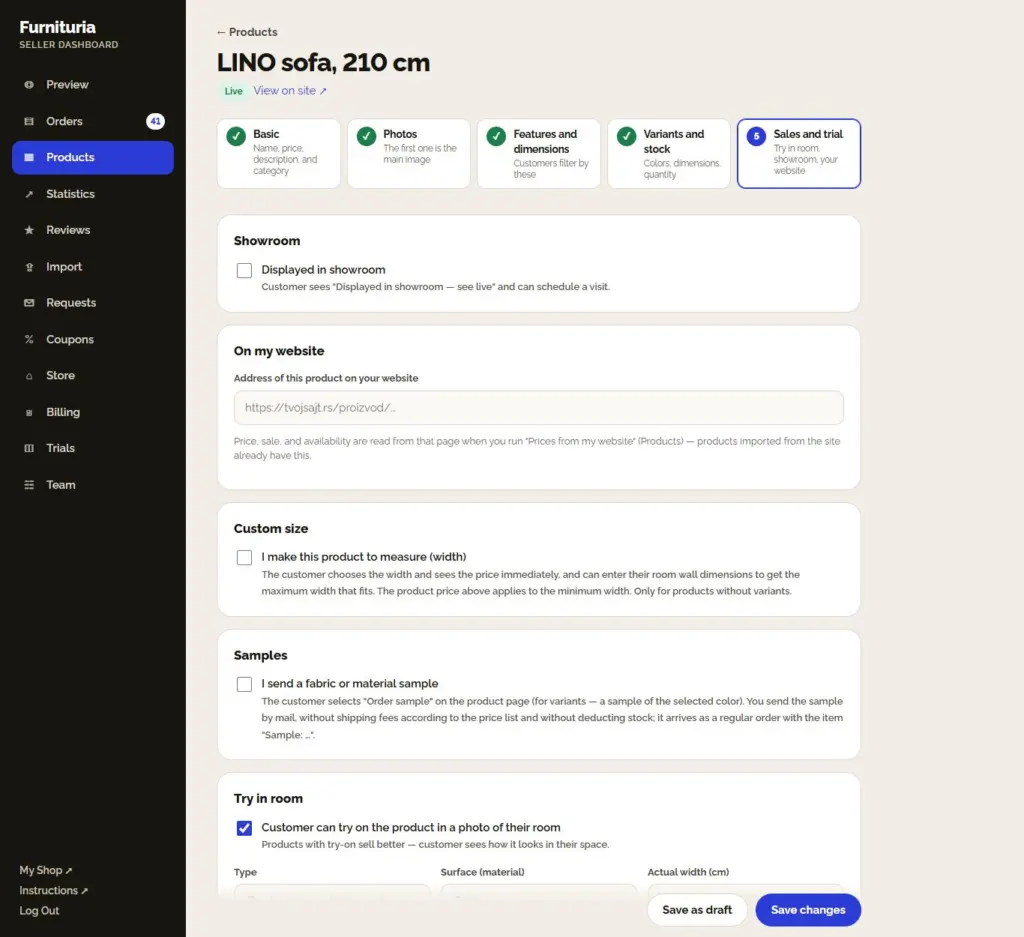
4.5Trial and sale
The first tab is room trial; other options are collapsed under “More sales options” (they open automatically when one is already enabled).
- Room trial: enable "Customer can try the product on a photo of their room". Type is Item (furniture, lighting, decor) or Material (tiles, parquet, wallpaper, paint); for material, also choose the surface (wall, floor, wall and floor).
- Available in showroom: the customer sees “Available in showroom” and schedules a visit in the “Contact the seller” menu.
- On my website: the URL of this product on your website. Price, sale, and availability are read from here when you run "Prices from my website" in Products.
- Custom-made: if you make a product in multiple widths, enable the "Custom-made" tab and enter the minimum and maximum width, increment (e.g., 10 cm), surcharge per increment, and additional production time. The product price applies to the minimum width. The customer chooses the width and sees the price immediately, can enter their wall length to get the maximum width that fits, and the room trial draws the piece in that width. You can see the chosen width in the order item name. Only for products without variants.
- Samples: enable "I send fabric or material samples" and enter the sample price (0 = free). The buyer selects "Order a sample" on the product page (for variants — selected colors); the sample arrives as an order with the item "Sample: …", without delivery according to the price list and without reducing stock — you send it by mail.
- Outlet: floor model: for a product without variants, turn on “Sell floor model” — floor model price (lower than regular), quantity, and condition. Under “Other purchase options,” the customer sees the savings and “Buy floor model,” the floor model is also on the Outlet page, and customers with the product on their wishlist receive an email. Floor models have their own quantity; the stock of the new product is not affected.
- Trial image is optional: for an item, a photo of the product itself without a background (PNG) is best; for material, a square sample. Without it, the main photo is used.
Finally: Save as draft (customers don't see it) or Submit for publication. If the platform reviews new products, the product is "Pending approval" until we approve it; changes to an already published product take effect immediately.
✓Product list
In the Products menu, you filter by status (All, For sale, Pending approval, Drafts) and search by name or SKU. Buttons above:
- ± Prices — change prices for multiple products at once.
- Prices from my website — sync prices, sales, and availability with your website.
- Import from file and + New product.
A product we returned for revision has our note — please correct and resubmit.
5Import entire catalog
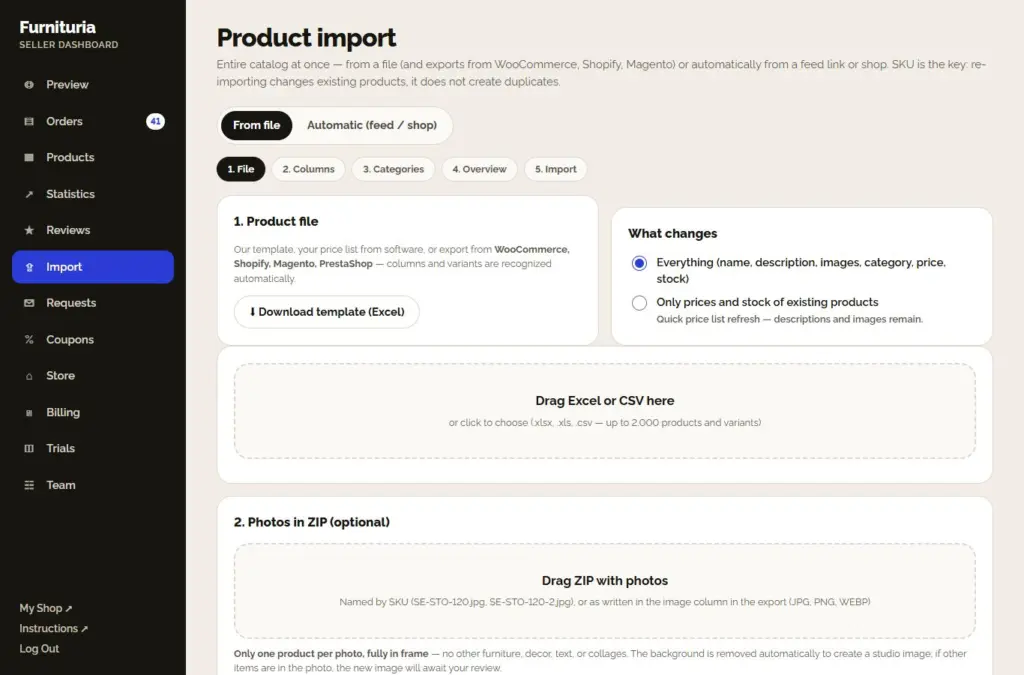
You don't have to enter products one by one. In the Import menu, you choose:
From file — in five steps: File → Columns → Categories → Review → Import.
- Download our template (Excel) or upload your price list, or an export from WooCommerce, Shopify, Magento, or PrestaShop (.xlsx, .xls, .csv — up to 2.000 products and variants). Columns and variants are recognized automatically. Enter the dimensions of the assembled piece in the "Piece Width", "Piece Depth", and "Piece Height" columns (cm); otherwise, the Length/Width/Height from the file will be used. The post-import report shows how many products lack dimensions — they are marked as "no dimensions" in Products.
- Optionally, drag and drop a ZIP with photos, named by SKU (e.g., SE-STO-120.jpg, SE-STO-120-2.jpg).
- Map your categories to ours, review products and errors, then start the import.
“Only prices and stock” quickly refreshes the price list of existing products — descriptions and images remain.
Automatically (feed / store) — enter the link to your XML/CSV feed or the address of your WooCommerce/Shopify store. Products are imported and synchronized every night: new ones are added, prices and stock are updated, and those no longer available are removed.
The SKU is the key: re-importing updates existing products, it does not create duplicates. If it's easier for you, send us your website address and we will set up the import.
Orders
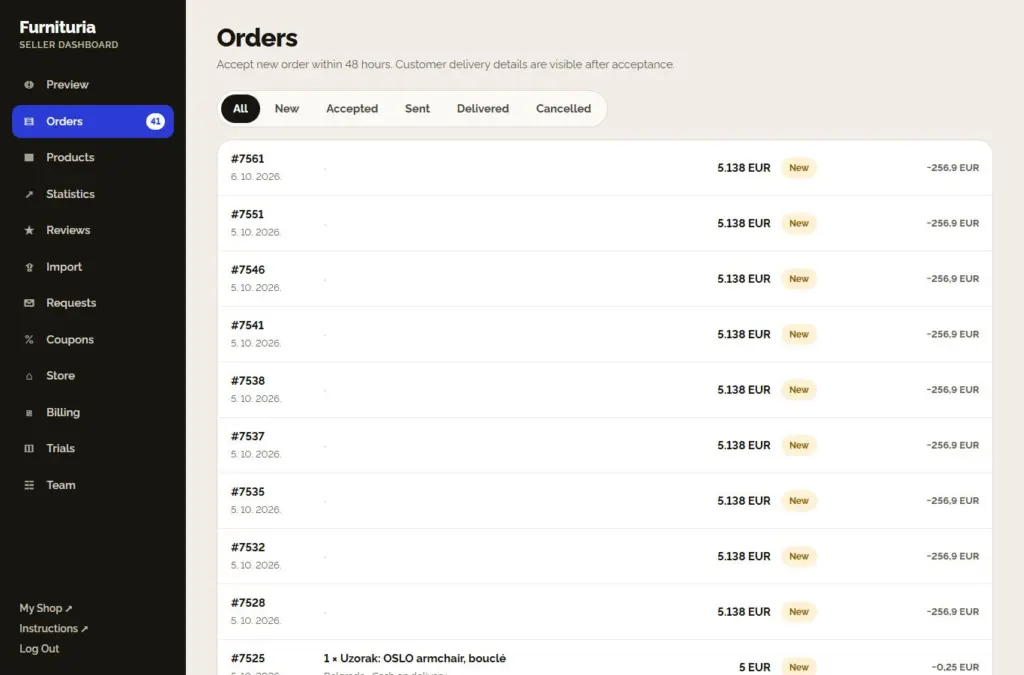
When a customer orders your product, you receive an email and an in-app notification, and the order appears in the Orders menu (the number of new orders is displayed next to the menu).
- NewAccept it within 48 hours — or cancel if the product is unavailable.
- AcceptedOnly now can you see the customer's name, phone number, and address.
- ShippedTracking number is required — the customer tracks the delivery. Delivering yourself? “Delivered personally”.
- DeliveredThe goods have arrived; the customer confirms receipt, and the order is added to the settlement.
- ReturnedA return within the legal period reduces the commission.
6List and single order
You can filter the list by status: All, New, Accepted, Shipped, Delivered, and Cancelled. Each order shows the amount and the commission for that order.
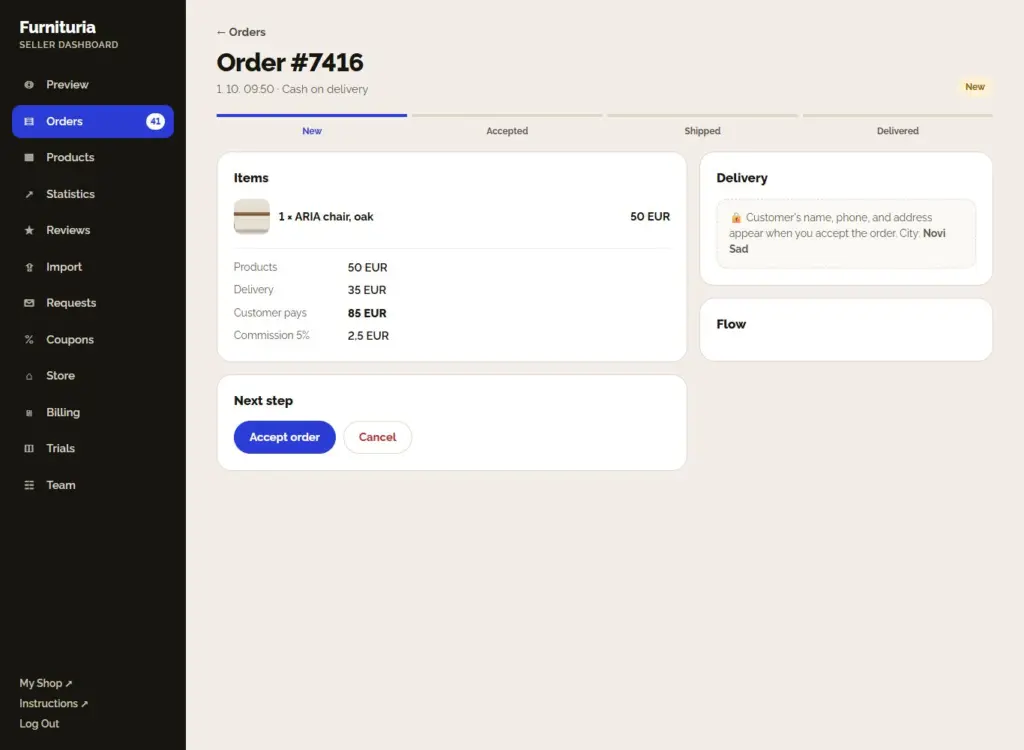
When you open an order, you see the items, shipping, total amount, and commission, the order flow, and a button for the next step (Accept order, Ship, Delivered, Cancel).
- Customer details (name, phone, address) appear only after you accept the order — before that, you only see the city.
- The commission is calculated only on delivered products, excluding shipping. A cancelled order is not charged.
- In their account, the customer sees the order flow (Ordered → Seller confirmed → Shipped → Arrived) and the tracking number, and with one click reports “It has arrived” or “It hasn’t arrived”; they also receive a request to confirm receipt via email. If they report that the shipment has not arrived, the order is flagged for review.
- The speed of accepting and shipping affects your seller rating.
✓Fast and without missed orders
- Install the site as an app on your phone and enable notifications (My Account) — new orders arrive instantly.
- If someone from your company accepts orders, add them to the Team with the "Orders" permission.
- With every new order, it says how much time you have left to accept it (“Accept in 31 h”, red when less than 12 h remains). If a new order is not accepted within 48 hours, you will receive a reminder via email — and slow acceptance lowers the seller rating.
- Customer Reports: when a customer reports a problem (damaged, not delivered, wrong product), you receive an email, and the report appears at the top of the Orders menu and within the order itself. Respond within 3 days and propose a solution (replacement, repair, refund) — after the deadline, the platform takes over the case, and unanswered reports lower your seller rating. The customer replies on the report page and confirms when it is resolved.
7Room trial and tokens
The customer takes a photo of their room and sees your product in it within half a minute — this leads to more confident purchases and fewer returns.
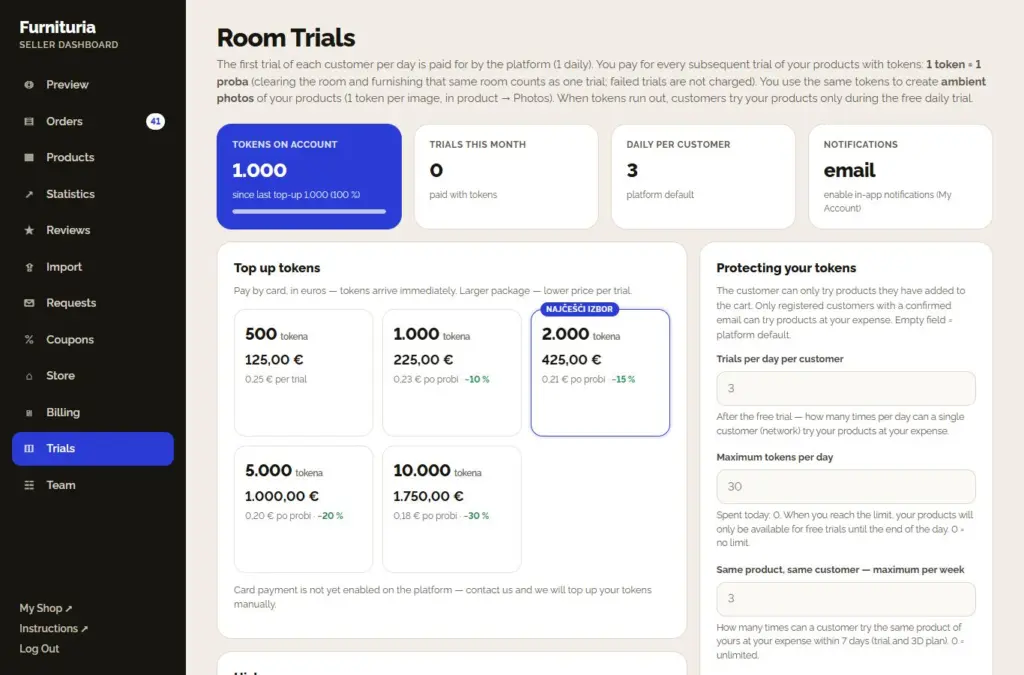
- The platform pays for the first trial of each customer per day. You pay for every subsequent trial of your products with tokens: 1 token = 1 trial (0,25 € per trial in the basic package).
- 3D room plan: from a 2D floor plan, the buyer gets a 3D view of the entire apartment with furniture from the offer. The first one of the day is paid for by the platform; each subsequent one costs a total of 2 tokens, distributed among the sellers in the plan according to the number of their pieces (the first token goes to the one with the most pieces). A failed plan is not charged; in History, it says "3D room plan".
- Clearing the room and furnishing that same room are one trial. A failed trial is not charged. When a customer tries products from multiple sellers at once, one token is paid — it is paid by the first seller in the trial who has available trials.
- Packages: 500 trials for 125,00 €, 1000 trials for 225,00 € (−10 %), 2000 trials for 425,00 € (−15 %), 5000 trials for 1.000,00 € (−20 %) and 10000 trials for 1.750,00 € (−30 %). You pay by card (PayPal), in euros — tokens arrive instantly.
- How many trials you offer the customer: after the free trial, this is how many times a day a customer can try your products at your expense (default 3). Additionally, your tokens are protected: customers only try products from their cart, only logged-in users with a verified email can try at your expense, the same customer can try the same product at most 3 times per week, and you spend at most 30 tokens daily — all of this can be changed in Trials → “Protect your tokens”. When you reach your daily limit, you will receive an email and an in-app notification, so you can increase it if needed.
- Notifications: when the balance drops to 70, 50, 30, 10 and 0 % of the last top-up, you will receive an email and an in-app notification.
When you run out of tokens, customers can still try your products during the free daily trial. Every trial is in the History.
The trial is as accurate as your data: a good photo and actual product dimensions (step 4.4) provide a faithful image in the customer's room.
8Accounting and commission
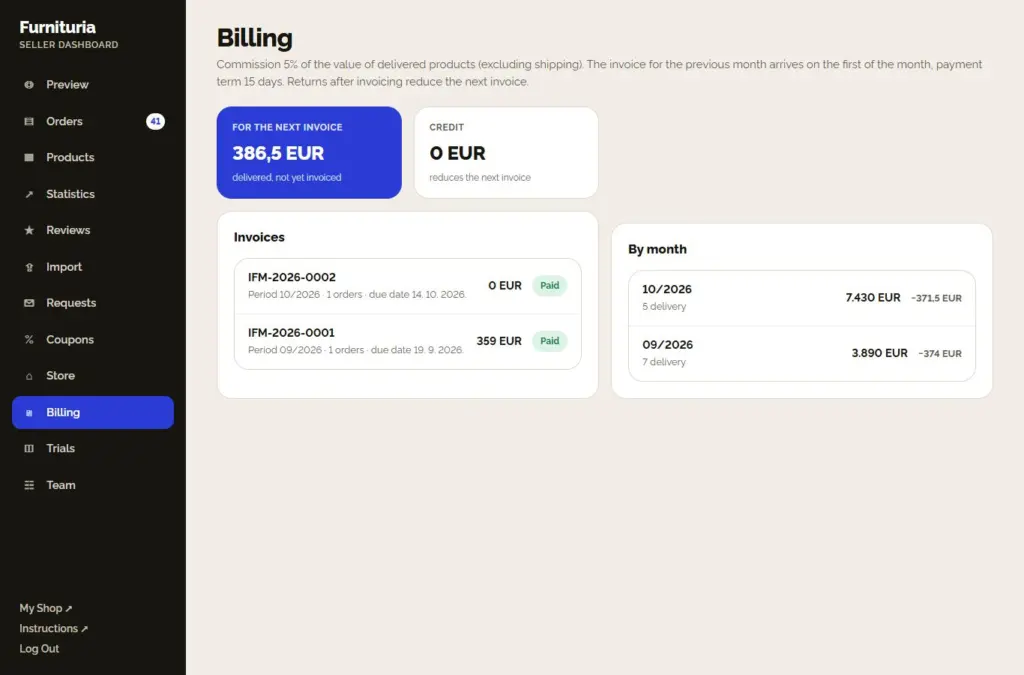
- The commission is 5% of the value of delivered products, excluding shipping. There are no monthly subscriptions or registration fees.
- Money from the customer goes directly to you (cash on delivery or to your account). We send you an invoice for the commission once a month.
- On the first of the month you receive an invoice for the previous month, with a payment deadline of 15 days.
- Returns after invoicing reduce the next invoice (item Credit).
- After the deadline, a reminder is sent. If the invoice is not paid even 7 days after the deadline, the store may be temporarily removed from sale — it returns after payment.
In the Accounting menu, you can see the amount for the next invoice, all invoices with their status, and turnover by month.
9Statistics and seller rating
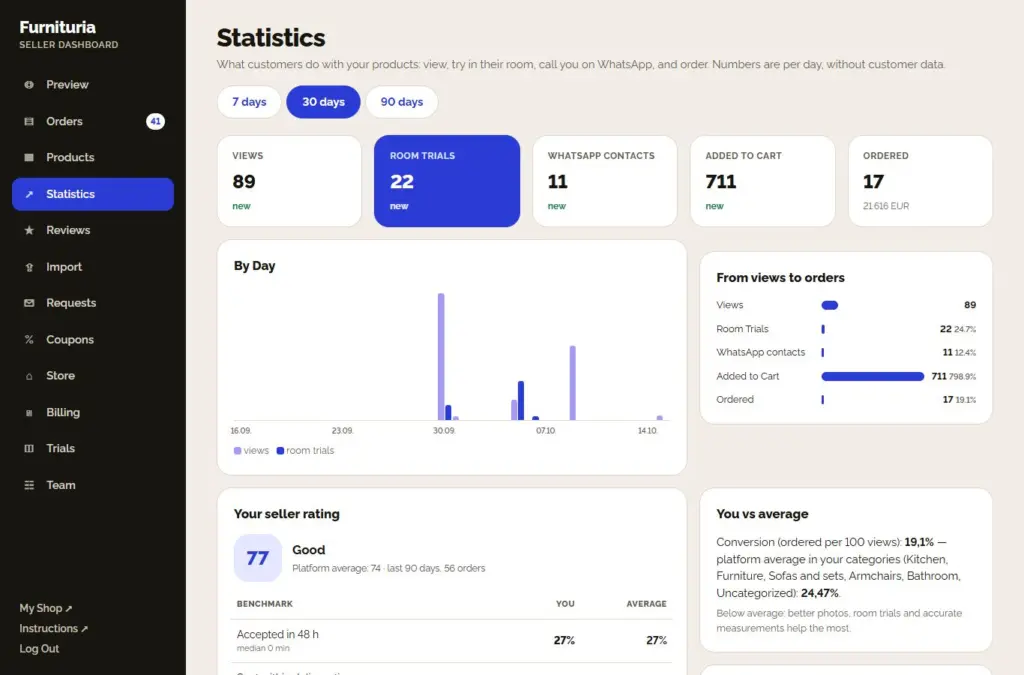
Statistics show what customers do with your products — for 7, 30 or 90 days: views, room trials, WhatsApp contacts, added to cart and ordered, and the path from view to order.
- By product you can see which product attracts attention and which is not selling.
- Where your customers are — orders and turnover by city.
- What kind of rooms they try in — in what spaces customers try your products: type of room, style, room size, and colors. Without photos and customer data. Adjust photos, description, and offer to the spaces where customers actually choose.
- Customers are searching, but it's not on the site — searches without results. If you make or sell this, add it: customers are already looking for it.
- Weekly report arrives by email every Monday: weekly numbers, rating, tips, and "Customers searching by room dimensions" — which pieces customers searched for by room size, how many times no product fit, and what width they need. You can disable it in the Shop settings.
Seller rating (0–100) is calculated for the last 90 days: acceptance within 48 hours, shipping on time, cancellations, returns, delivery issues, shipping with a tracking number, and customer ratings. For each metric, you see the platform average and advice on what to improve.
Reviews, coupons, and team
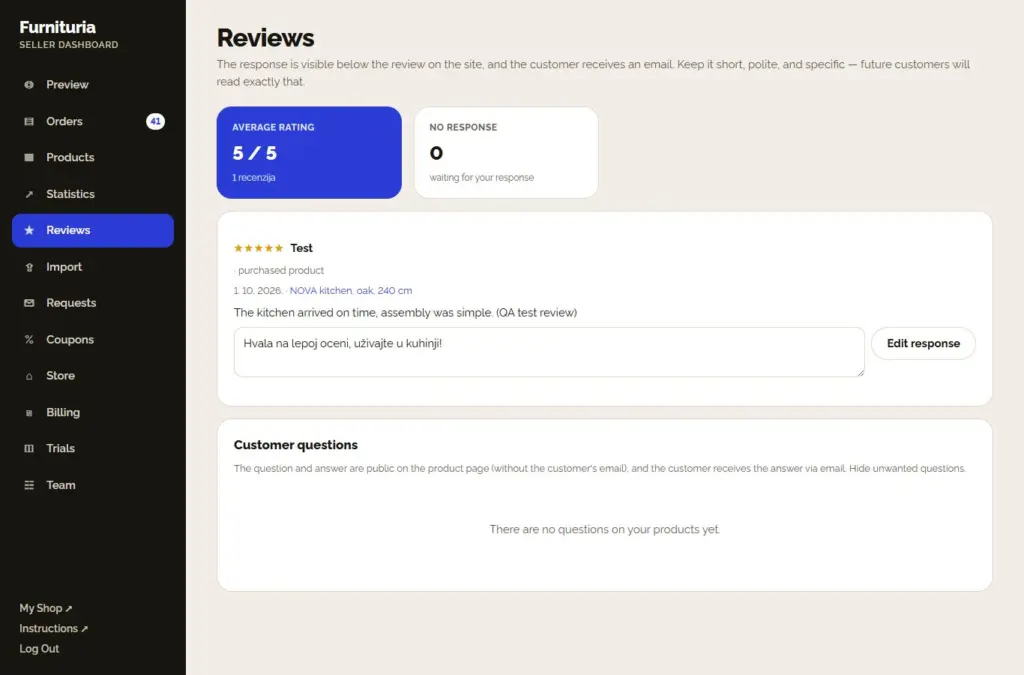
Reviews
Ratings and comments from customers of your products. Reply publicly — customers see both the rating and your response. A polite response even to a bad review builds trust.
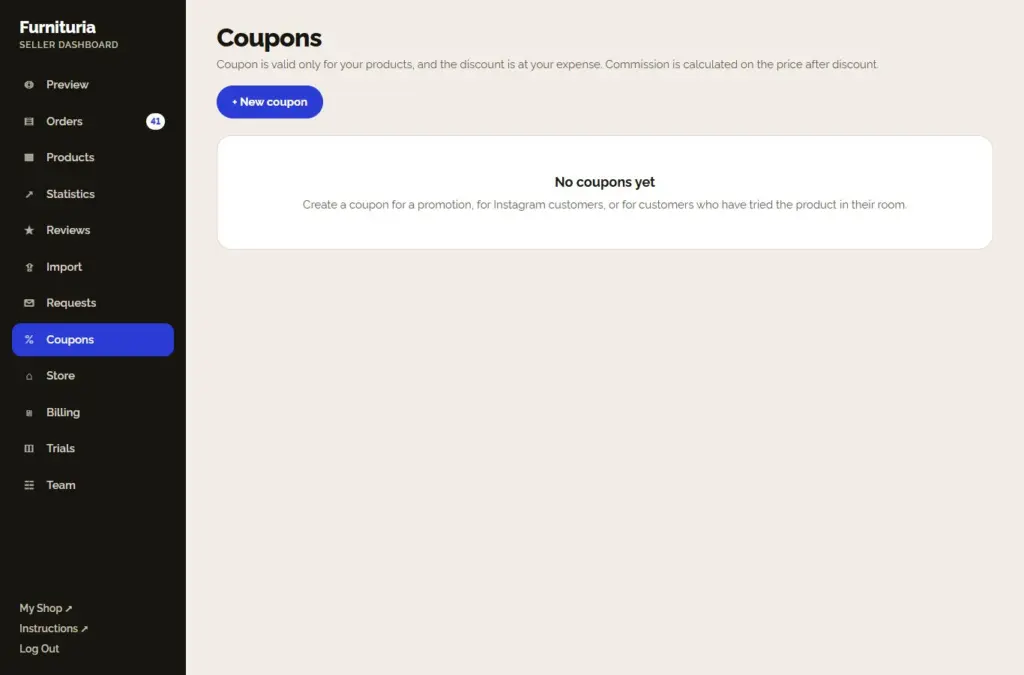
Coupons
Create a coupon for a promotion, for Instagram customers, or for those who tried the product in their own home. The coupon is valid only for your products, the discount is at your expense, and the commission is calculated on the price after the discount. At the top is Offer after trial: how many customers requested a discount for which product after a room trial — you send them an offer with one click. Below are Sets: combine your products into a set with a discount for the entire set.
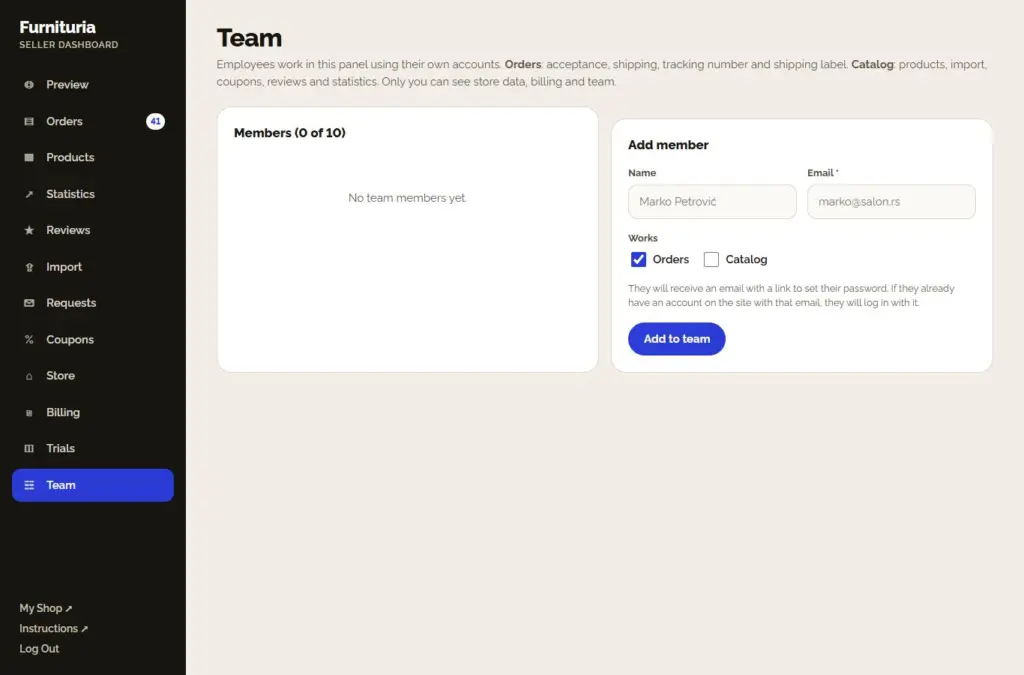
Team
Up to 10 employees can work in the panel with their own account. Orders: accepting, shipping, tracking number. Catalog: products, import, coupons, reviews, and statistics. Only you can see store data, billing, and the team.
Tips for better sales
Photos
The entire product, well-lit, on a light background. At least 3 images: front, corner, and material detail. No text or collages.
Exact dimensions
Dimensions of the assembled product, not the box, plus packaging dimensions. Whether the customer believes it fits depends on them: the "Fits in my room" filter, room layout, passage check to the room, and the drawing in the trial.
Features and variants
Fill in color, material, and other features — this is how the product appears in filters. Use colors as variants, not as separate products.
Fast response
Accept the order the same day and ship it with a tracking number. Speed is the biggest part of the seller rating.
Video call
Answer WhatsApp and video calls — a customer who sees the product live buys more often.
Try in room
Enable trials on all products and keep tokens in stock — a product a customer sees in their room sells better.
Seller FAQ
How long does it take to approve an application and new products?
We review the application as soon as possible and notify you by email when the store is approved. While waiting, you can edit products and store data normally. A seller invited by email does not wait for approval.
How do I get paid by the customer?
Directly: the customer pays you — cash on delivery or by payment to your bank account, as you choose in the Store settings. The platform does not hold your money; once a month we send you only an invoice for the commission on delivered goods.
Why do I have to enter product dimensions?
By the width and depth of the assembled product, the customer checks if the piece fits in their room, and the room trial draws the product in the correct size. Box dimensions instead of product dimensions give a wrong picture — that is why dimensions in step 4 are mandatory.
Where do I answer buyer questions about a product?
Buyers ask questions on the product page ("Questions and answers"). You receive an email, and you can see the question in the panel → Reviews → Buyer questions. Your answer is published on the product (without the buyer's email) and arrives to the buyer via email; hide unwanted questions. Answer quickly and concretely — future buyers read exactly that, and the assistant on the product page uses your answers.
How do I sell a displayed piece from the showroom?
In the product, in the “Sale and trial” step, turn on “Outlet: floor model”: floor model price (lower than regular), quantity, and brief condition. The floor model is sold alongside the new product — it has its own quantity, and the stock of the new product remains the same; when all floor models are sold, the block disappears automatically, and a canceled order returns them. In the order, the item reads “Outlet (floor model): name (condition)”.
What does "In buyer projects" mean in statistics?
Buyers plan a room with a budget and put pieces into their projects. In Statistics, you see how many projects contain your products — just the number, without buyer data. A product that is in many projects but rarely bought is a candidate for a set, an offer after a trial, or a display piece.
How do I send fabric or material samples?
In the product, step "Sales and trial", enable the "Samples" tab and enter the sample price (0 = free). The buyer selects "Order a sample" — for products with variants, they get a sample of the selected color. You receive a regular order with the item "Sample: name — color", without delivery according to your price list (you send the sample by mail, included in the price) and without reducing stock. A buyer who received a sample is a warm lead — reach out after a few days.
How do I offer custom-made production?
Open the product in the dashboard and enable the "Custom-made" tab: enter the minimum and maximum width, increment, surcharge per increment, and additional production time. The product price applies to the minimum width. The customer chooses the width on the product page (or enters their wall size), sees the price immediately, and sees the room trial in that width; the width is included in the order item name. Works for products without variants.
What are "Requests" in the panel?
Buyers describe a custom room or kitchen (type, dimensions, budget, deadline, city, description, often a floor plan from the Room Planner). The request is seen by sellers from the buyer's country who make such furniture or offer custom manufacturing — it arrives via email and in the panel → Requests. Send an offer: price, production time, how many days it is valid, and what it includes; you can change it until the buyer decides. You cannot see the buyer's contact info. When they accept your offer, it goes into their cart as your product and arrives to you as a regular order (delivery according to your price list, commission as for everything else).
How do I charge for assembly, carrying, or removal of old furniture?
In Shop → Services with product, add a service with a price per item and, if necessary, categories (e.g., appliance installation only for kitchens). The buyer checks it on the product page and sees the price immediately; the service is included in the item price, appears in the order name in the panel and email, and the commission is calculated on the total item price. You perform the service upon delivery.
Why do I enter package dimensions?
They are used by the customer on the product page to check "Does it fit in the room?" — through doors, hallway turns, elevators, and stairs. A package that doesn't fit means a return; therefore, enter the actual box dimensions (for multiple packages — the largest one).
What is "Customers searching by room dimensions" in the report?
Customers enter their room dimensions in the assistant and the "Fits in my room" filter. In the weekly report, you see which pieces from your offer they are looking for, for what room sizes, how many times no product fit, and what width they need — a sign to add smaller models or offer custom-made production.
What does "What kind of rooms they try in" mean in statistics?
With every trial of your product, we record only the circumstances: type of room, chosen style, colors, and approximate room size — without a photo and without customer data. In Statistics, you see these shares for 7, 30, or 90 days, and in the weekly report, the most common space. If your sofa is most often tried in small Scandinavian-style living rooms, put such photos and smaller models in the foreground.
What is "Offer after trial"?
A customer who has tried your product in their room can enable "Notify me if the seller offers a discount" themselves. In the Coupons menu, you see how many customers are waiting for an offer for which product — you cannot see the addresses. You choose the discount (5–50 %), the deadline (2–14 days), and optionally a short message; the platform sends each customer a personal code valid only for that product and only for their address. For the same product, you can send an offer once every 14 days, and the customer receives at most one offer per product per month.
How do I get a photo of the product in a furnished room?
In the product, in the Photos step, select a room (living room, bedroom, dining room, kitchen, home office, children's room, hallway, terrace) and style, then click "Create ambient photo". AI places your product — with the same shape, color, and material — into a furnished room. The best result is provided by a studio photo without a background. Costs 1 token; if the image fails, the token is not spent. Add the image to the gallery or discard it; it is marked as an AI illustration.
How do I create a product set?
In the Coupons menu, Sets tab → "+ New set": name, discount for the entire set (3–40 %), and 2–8 of your products with quantity (e.g., sofa + 2 armchairs + coffee table). The customer sees the set on the page of each product within it, with the price before and after the discount, adds it to the cart with one click, and can arrange it in the room layout. The discount is valid when the entire set is in the cart and applies only to the pieces that make it up; the commission is calculated on the price after the discount. Products without variants, in stock, and without custom manufacturing can be in a set.
Can the system write a product description for me?
Yes, we have a suggestion tool: in the product, under the Photos step, click "Suggest name, description, and features". From the photo and entered dimensions, you get a name, short description, detailed description with key points, category, and features (color, material…) from the platform's list. If dimensions aren't entered, the suggestion estimates them only for the dimension fields — be sure to check them. You can review and apply the suggestion with one click, then edit it if needed. It's free.
What is "3D room plan" in the token history?
The buyer created a 3D view of the entire apartment with furniture from the offer from their floor plan, and your products are in it. After the buyer's free daily 3D plan, one 3D plan costs a total of 2 tokens, distributed among the sellers in the plan according to the number of pieces. The buyer immediately sees all products from the plan with prices and an "Add all to cart" button.
What happens when I run out of tokens?
Customers can still try your products in the free daily trial paid for by the platform, but no more than that. You will receive a notification at 70, 50, 30, 10, and 0 % of the balance, so top up in time in the Trials menu.
What if the customer returns the goods?
The customer has a legal right to withdraw from a remote purchase. You then mark the order as returned; if it has already been invoiced, the commission is returned as a credit on the next invoice.
I have my own website — do I have to enter everything again?
No. In the Import menu, enter the address of your WooCommerce or Shopify store, or a feed link — products are imported and synced every night. You can also import an Excel price list. If it doesn't work, send us your website address and we will set up the import.
Can someone else from the company work in the panel?
Yes: in the Team menu, add up to 10 employees, each with permissions for Orders and/or Catalog. Everyone works with their own account; only you can see store data, billing, and the team.
The trial drew the product incorrectly — what should I do?
Check the dimensions (step 4) and the main photo: an image of the whole product, from the front, without other objects gives the most accurate result. If the piece does not fit in the customer's room, the system warns them before the trial — and the image is always an illustration, not a measurement.
Ready for the first product?
The seller panel is at /seller/. For anything that is not clear — write to us.